 Captions and PDFs
How to check a PDF for accessibility problems
Last reviewed
Quick take
- Check the Word file first. Then check the PDF you exported from it.
- A checker gives three kinds of result: passed, failed and "needs manual check".
- A tool can't judge everything. You still look at the reading order yourself.
- Fix problems in the source file when you can, then export again.
Step 1: check the source file
If the PDF came from Word, run Word's Accessibility Checker first. It reviews your content and flags the issues it finds.[1] It's far easier to fix a heading in Word than in a finished PDF. The steps are on Word files that convert well.
Step 2: run a PDF checker
Adobe Acrobat Pro has a tool called Prepare for accessibility. It runs many tasks for you, checks accessibility, and gives instructions for items you must fix by hand.[2] A second tool, Check for accessibility, tests the file against standards such as PDF/UA and WCAG.[2]
Other PDF programs have checkers too. Names and menus differ. The idea is the same: run the tool, then read the report.
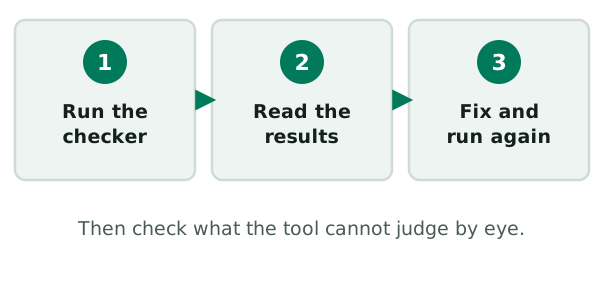
Step 3: read the results
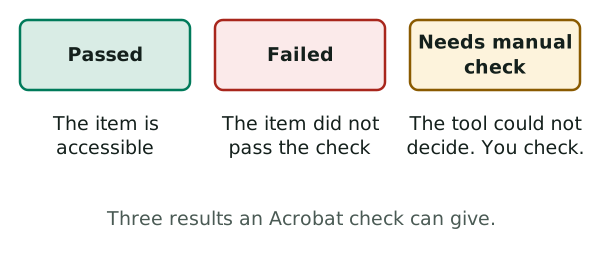
Each rule in the Acrobat checker ends up with one of a few results. Three matter most:
- Passed. The item is accessible.[2]
- Failed. The item didn't pass the check.[2]
- Needs manual check. The tool couldn't test the item itself, so you must verify it by hand.[2]
Don't panic over every failure. Adobe warns that the checker doesn't tell essential content from nonessential content, so some reported issues may not affect readability.[2] Read each one and decide.
Step 4: look at what a tool can't judge
The "needs manual check" items are your to-do list. Two are worth a closer look.
Reading order. A wrong order can leave keyboard and assistive technology users unable to follow the content.[3] Acrobat's Reading Order tool can examine the structure, order and contents of a PDF.[2] When the order is wrong, the W3C says a repair tool such as Acrobat Pro is how you correct it.[3]
Security settings. An author can lock a PDF so it can't be copied or extracted. That can stop a screen reader, because screen readers must be able to extract the text to turn it into speech.[2] If your PDF reads badly in one program, look at its security settings.
Step 5: fix, export, check again
Go back to the source file when you can. Fix the problem there. Export again with tags on. Run the checker again.
The U.S. Section508.gov site also offers a testing checklist and a testing guide for PDFs, as downloadable documents.[4] They go further than this page does.
When your PDF is clean, the next page covers the same job for sound and pictures: checking video and audio.
Sources
- Make your Word documents accessible to people with disabilities, Microsoft Support (accessed 2026-11-10)
- Create and verify PDF accessibility, Acrobat Pro, Adobe (accessed 2026-11-10)
- PDF3: Ensuring correct tab and reading order in PDF documents, W3C Web Accessibility Initiative (accessed 2026-11-10)
- Create Accessible PDFs, Section508.gov (U.S. General Services Administration) (accessed 2026-11-10)