 Captions and PDFs
Making a PDF accessible with tags, reading order and bookmarks
Last reviewed
Quick take
- Tags tell software what each part of a PDF is.
- The easy way to get good tags is to fix the source file, then export.
- Complex pages may still need a repair tool afterward.
- Bookmarks let readers jump to a section. They come from your headings.
What tags do
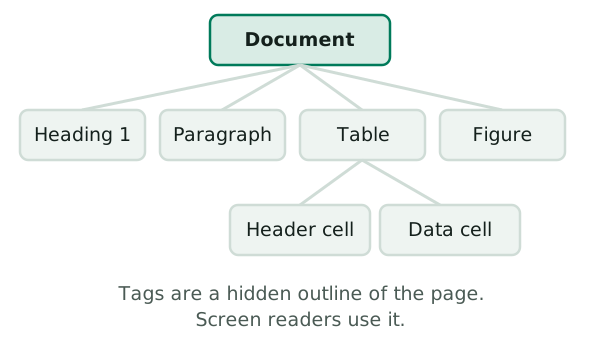
A tag is a hidden label inside a PDF. One tag says "heading". Another says "paragraph". Another says "table". Together they form an outline of the page that a screen reader can follow.
Tags are not the only thing that matters, but without them a screen reader has little to go on. Microsoft puts it this way: tags help people who use screen readers and other assistive technologies read and navigate a document.[1]
Start in the program that made the file
You rarely build tags by hand. You make them when you save or export. The best plan is to get the file right first, then export it with tags on.
The simplest way to get a correct reading order, says the W3C, is to structure the document properly. Do it in the program you write in, before you convert.[2]
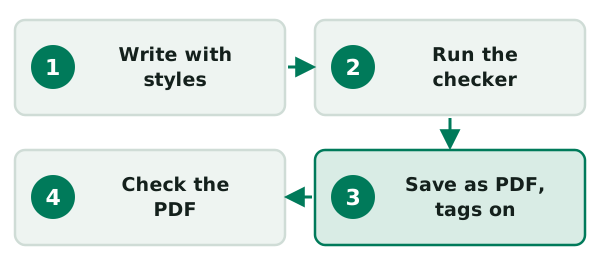
In Microsoft 365, the Save As box for PDFs has an Options button. Inside it, make sure the box called "Document structure tags for accessibility" is ticked.[1] In other programs, check the export options for a tagging setting. The wording differs from program to program.
Reading order
The reading order is the order in which a screen reader reads the page. In a PDF it comes mainly from the order of the tags, not from where things sit on the page.[2]
Picture a page with a side note beside the main text. The side note might sit in the middle visually. But if its tag comes last, the reader hears it last.
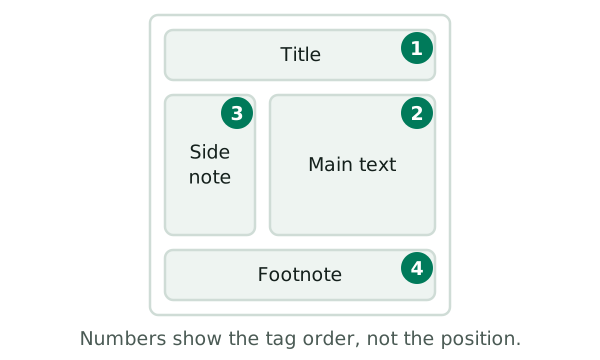
Simple pages usually come out right. Busy pages are the risk. Pages with pictures, tables, footnotes, side bars or form fields may not convert in the right order.[2] Then the order has to be fixed in a repair tool such as Adobe Acrobat Pro.[2]
Headings
A PDF needs real heading tags, just like a Word file needs real heading styles. The W3C describes how headings in a PDF are marked so that assistive technology can recognize them.[3] If you used heading styles in the source file, the export normally carries them over.
Bookmarks
Bookmarks are a clickable outline in the side panel of a PDF reader. The W3C says they help people find content in long documents. That means those over a few pages, or with many parts.[4]
You don't type them one by one. If you add a table of contents in Word and then convert, its entries link to your headings. The headings then show up as bookmarks in Acrobat's navigation pane.[4]
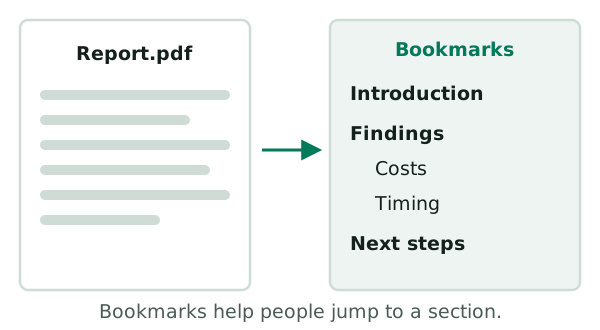
For a one-page flyer, bookmarks add little. For a long report, they save readers a lot of scrolling.
Ready to build the source file? Go to Word files that convert well.
Sources
- Create accessible PDFs, Microsoft Support (accessed 2026-11-10)
- PDF3: Ensuring correct tab and reading order in PDF documents, W3C Web Accessibility Initiative (accessed 2026-11-10)
- PDF9: Providing headings by marking content with heading tags in PDF documents, W3C Web Accessibility Initiative (accessed 2026-11-10)
- PDF2: Creating bookmarks in PDF documents, W3C Web Accessibility Initiative (accessed 2026-11-10)