 Captions and PDFs
How to check a video or podcast for accessibility
Last reviewed
Quick take
- Decide what the media needs. It depends on whether it is audio or video, and live or recorded.
- Test each piece yourself, with the sound off and then with the screen off.
- Check the player too, not just the files.
First, what does it need?
The W3C's WCAG standard asks for different things from different media. Here is the short list.
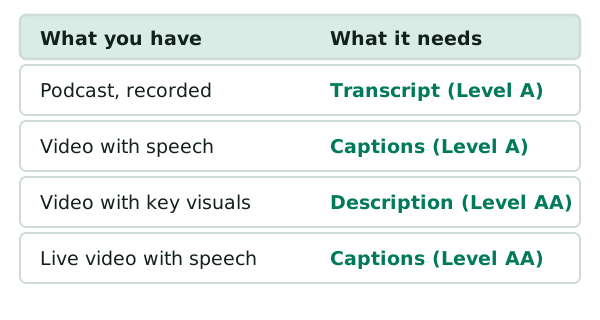
A recorded audio-only file, like a podcast, needs a transcript at Level A.[1] Recorded video with speech needs captions at Level A.[2] Live video with speech needs captions at Level AA.[2] Video with important visuals needs audio description at Level AA.[3]
Why those jobs exist is covered in captions, subtitles and transcripts and audio description.
If a video needs no captions or no description, say so on the page. The W3C suggests this so that people don't think you forgot.[4]
Then, test it
Do these tests on the real page, the way a visitor will meet it.
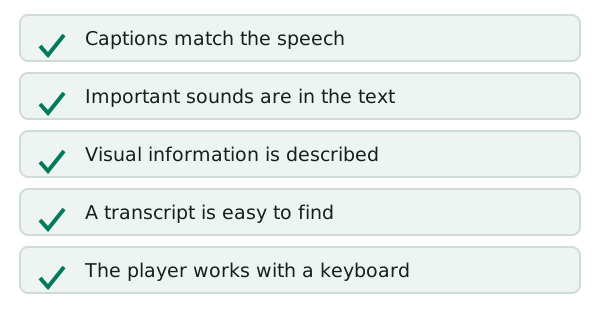
1. Sound off. Turn on the captions and mute the video. Can you follow what happens? Do the captions name the speakers and the important sounds?
2. Read the captions against the audio. Automatic captions don't meet accessibility needs until someone confirms they are fully accurate.[2] So watch once with the sound on and the captions open. Look for wrong words, especially small ones like "not".
3. Screen off. Close your eyes, or look away, and listen. Is anything important shown but never said? If so, you may need description.
4. Find the transcript. Is it on the page, or one clear link away? A podcast needs one.[4] Check that the words match the audio.
5. Try the player with a keyboard. A media player needs to offer keyboard support.[5] Press Tab to reach the play button. Press Enter or Space to use it. Can you reach every control?
6. Check for autoplay. If audio starts by itself and runs for more than 3 seconds, there must be a way to pause or stop it.[4]
Keep a short record
Write down what you checked and the date. A simple note beats a guess six months later. Then, when you add a new video, run the same tests.
Sources
- Transcripts, W3C Web Accessibility Initiative (accessed 2026-11-10)
- Captions/Subtitles, W3C Web Accessibility Initiative (accessed 2026-11-10)
- Description of Visual Information, W3C Web Accessibility Initiative (accessed 2026-11-10)
- Planning Audio and Video Media, W3C Web Accessibility Initiative (accessed 2026-11-10)
- Media Players, W3C Web Accessibility Initiative (accessed 2026-11-10)