 Captions and PDFs
Slide decks that turn into good PDFs
Last reviewed
Quick take
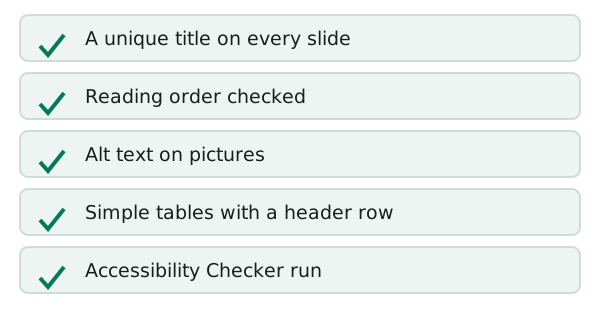
- Every slide needs its own title.
- Screen readers read slide parts in a set order, and it may not match what you see.
- Check the order, then run the Accessibility Checker, then save as PDF.
- Think twice before you post a slide deck as a stand-alone file.
Titles come first
Microsoft's advice is blunt: give every slide a unique title.[1] The reason is navigation. People who are blind, have low vision or have a reading disability rely on slide titles to move around.[1]
Think of a table of contents. A reader can skim the titles and jump straight to the slide they want. A slide with no title is a dead spot.
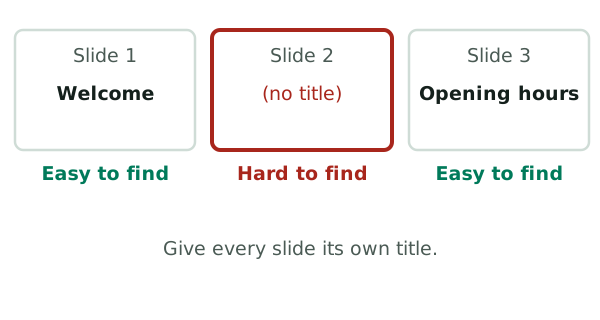
Say a slide has just a big photo and a caption. It still needs a title. If the title would look odd on screen, Microsoft's page has a section on how to hide a slide title.[1]
Reading order
On a slide, parts can sit anywhere. A title, a text box, a picture. A screen reader needs one order to follow.
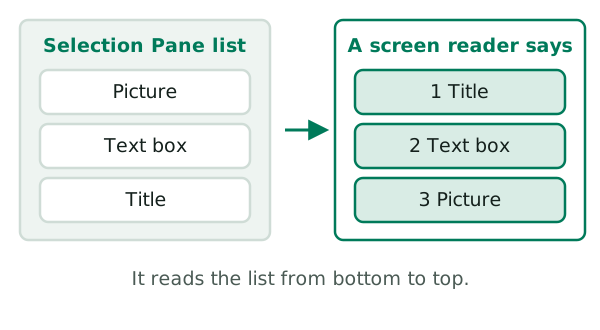
It reads the parts in the order they were added to the slide. That can be very different from the order you see.[1] You might add a picture first and the title last. Then the reader hears the picture first.
You can fix this with the Selection Pane, a list of every object on the slide. On the Home tab, choose Arrange. Then pick Selection Pane.[1] Drag the items into the order you want.
There's a twist. Screen readers read the objects in the reverse of the order listed in the pane.[1] So the item at the bottom of the list is read first. Put the title at the bottom.
Tables
Tables follow the same rule as in Word. Keep them simple, hold data only, and mark the header row.[1]
Run the checker, then export
Before you convert a deck to another format, run the Accessibility Checker and fix everything it reports.[1] Then save as a PDF with the tags option on, as shown in making a PDF accessible.
You can also test the deck yourself with a screen reader. Narrator comes with Windows, so there's nothing to install.[1]
Is a deck the right download?
Slides are usually made to be shown with a speaker. Read on their own, they can feel thin. If your slides are mostly bullet points, a short web page may serve readers better. That's a choice, not a rule. Think about who will read it and how.
Sources
- Make your PowerPoint presentations accessible to people with disabilities, Microsoft Support (accessed 2026-11-10)